Welcome to the MediPin for Zoom integration guide. This integration allows MediPin to automatically join your Zoom meetings to record, transcribe, and generate clinical notes directly into your MediPin dashboard.
1. Installation (Adding the App)
Step 1: Connect Your Account
- Log in to your MediPin account.
- Click the Profile Icon in the top-left corner, then select “Account”.
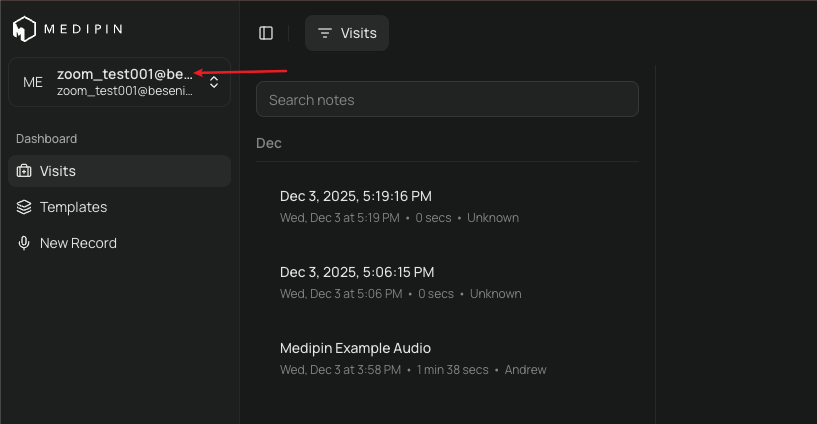
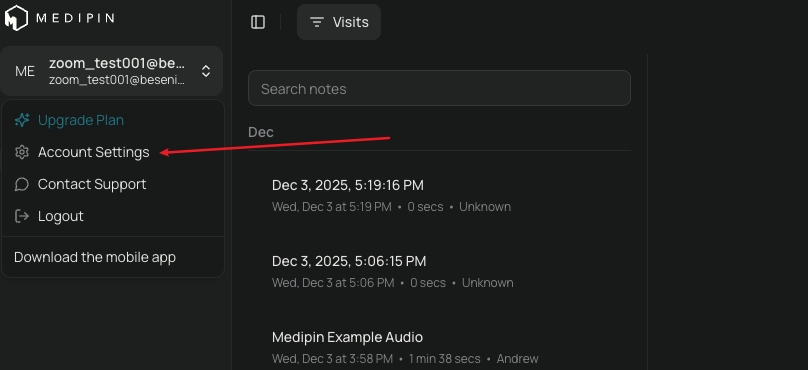
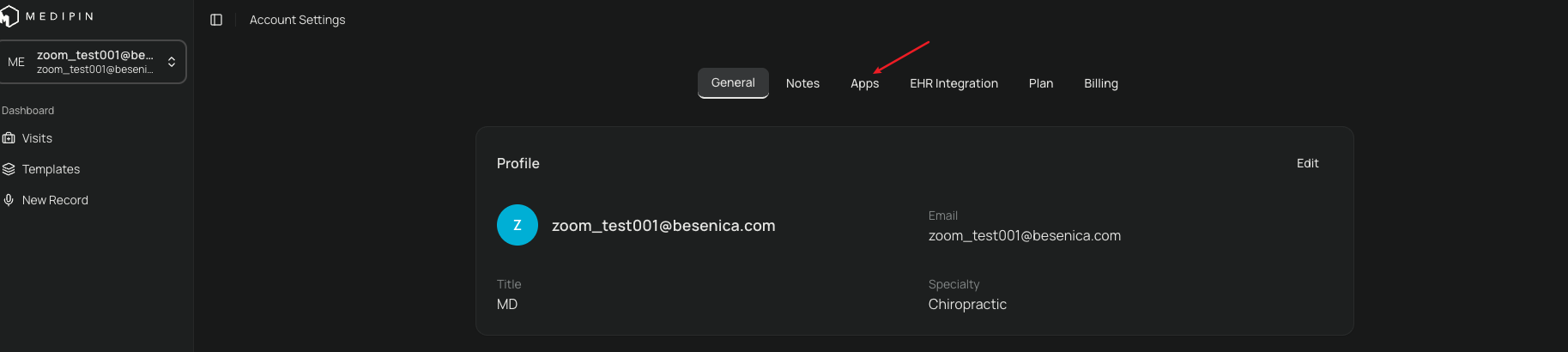
- Click the “Apps” tab at the top of the screen.
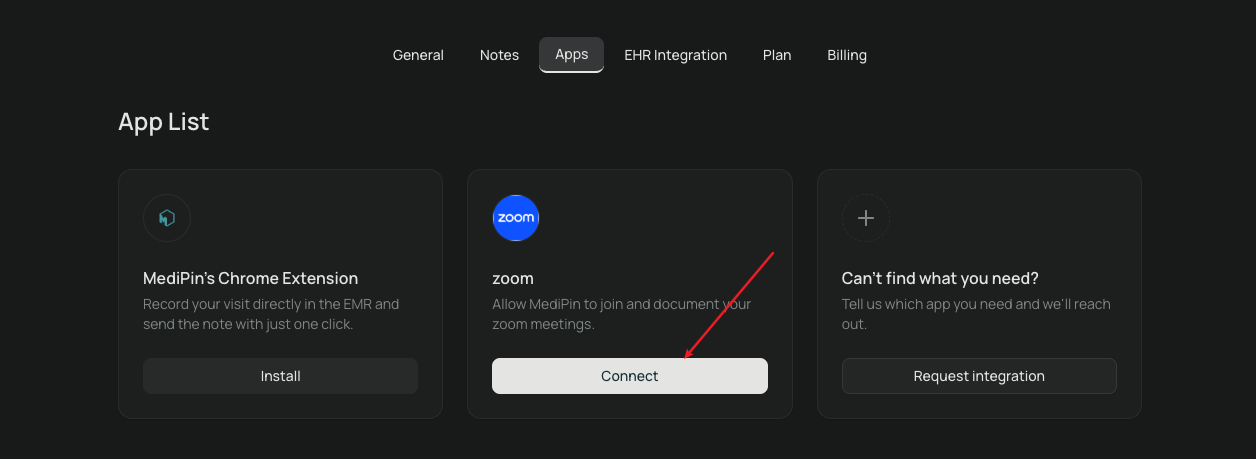
- Find the Zoom app and click “Connect”. You will be redirected to the Zoom App Marketplace.
Note: Please ensure you are logged into the correct Zoom account in your browser before adding the MediPin app.
Step 2: Authorize Permissions
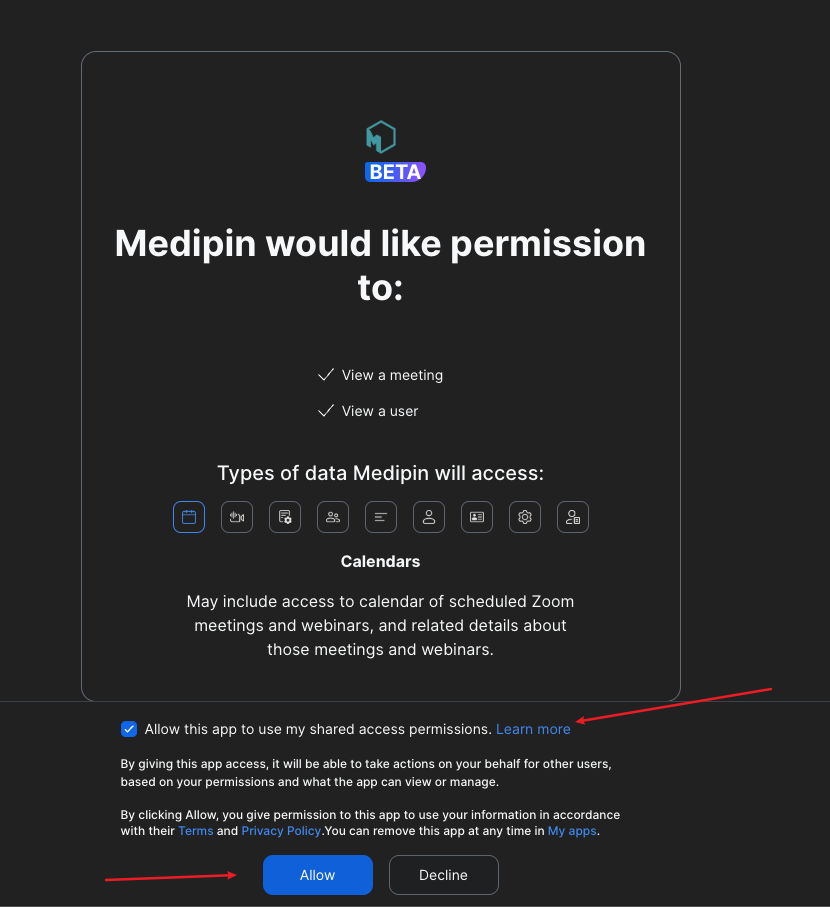
After clicking connect, you will see the Zoom authorization screen:
- Check the box that says “Allow this app to use my shared access permissions”.
- Click the “Allow” button.
Troubleshooting Installation
If you encounter issues during installation:
- Wrong Account: Ensure you are logged into the specific Zoom account you intend to use for meetings.
- Admin Permissions: If you are part of a corporate Zoom account, ensure your admin has allowed the installation of Marketplace apps.
- Support: If the issue persists, please contact us at **contact@medipin.ai **.
2. Usage
Prerequisites
To ensure the MediPin bot joins and records successfully, please ensure:
- You are the Host of the Zoom meeting.
- Cloud or Local Recording is enabled in your Zoom settings (to allow the bot to capture audio).
- Your MediPin account status is active.
How it Works
- Start a Meeting: Start a scheduled meeting or an instant meeting in Zoom.
- Automatic Joining: Within a few minutes, the MediPin Bot will automatically request to join the meeting as a passive participant.
- Identification: The bot will appear in the participant list as “Clinical Notetaker (MediPin.ai)”.
- Recording: The bot captures audio directly from the meeting stream. You do not need to use speakers to play patient audio, ensuring better quality and privacy.
- Waiting Room: If you have a Waiting Room enabled, you may keep the bot there until you obtain patient consent, then admit it.
- Get Your Notes: After the meeting ends, the bot leaves automatically. Log in to your MediPin Dashboard to view and edit your generated clinical notes.
3. Uninstallation (Disconnecting the App)
You can disconnect MediPin from your Zoom account directly from your dashboard or via the Zoom App Marketplace.
Option 1: Disconnect via MediPin Dashboard (Recommended)
- Log in to your MediPin account.
- Navigate to the Apps (or Account Settings) section where you connected Zoom.
- You will see the status as “Connected”.
- Click the “Disconnect” button.
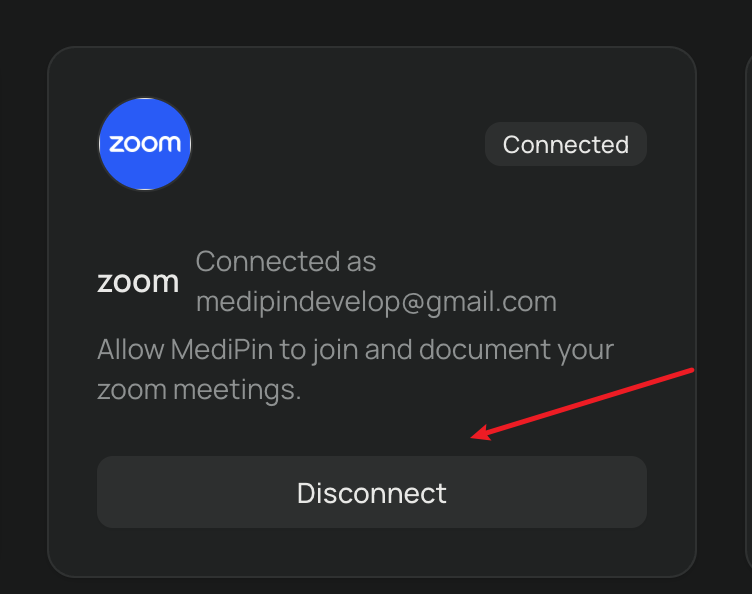
This will immediately stop the bot from joining future meetings.
Option 2: Remove via Zoom App Marketplace
If you cannot access your MediPin dashboard, you can remove the app via Zoom:
- Log in to your Zoom Account and navigate to the Zoom App Marketplace.
- Click Manage > Added Apps or search for “MediPin”.
- Click the “Remove” button next to the MediPin app.
- Confirm the removal in the pop-up dialog.
Implications of Disconnection
- Bot Activity: The MediPin bot will no longer automatically join your future Zoom meetings.
- Account Connection: Your Zoom account will be disconnected from the MediPin platform.
Data Retention & Removal Policy
- Data Retention: Disconnecting or removing the app does not delete your existing meeting notes and data stored in your MediPin account. You can still access your history by logging into MediPin.
- Data Removal: If you wish to request a full deletion of your account and all associated data (including meeting recordings and notes), please contact us at **contact@medipin.ai ** with the subject line “Data Deletion Request”. We will process your request in accordance with our Privacy Policy.
4. Support
If you have any questions or need assistance, please contact our support team: